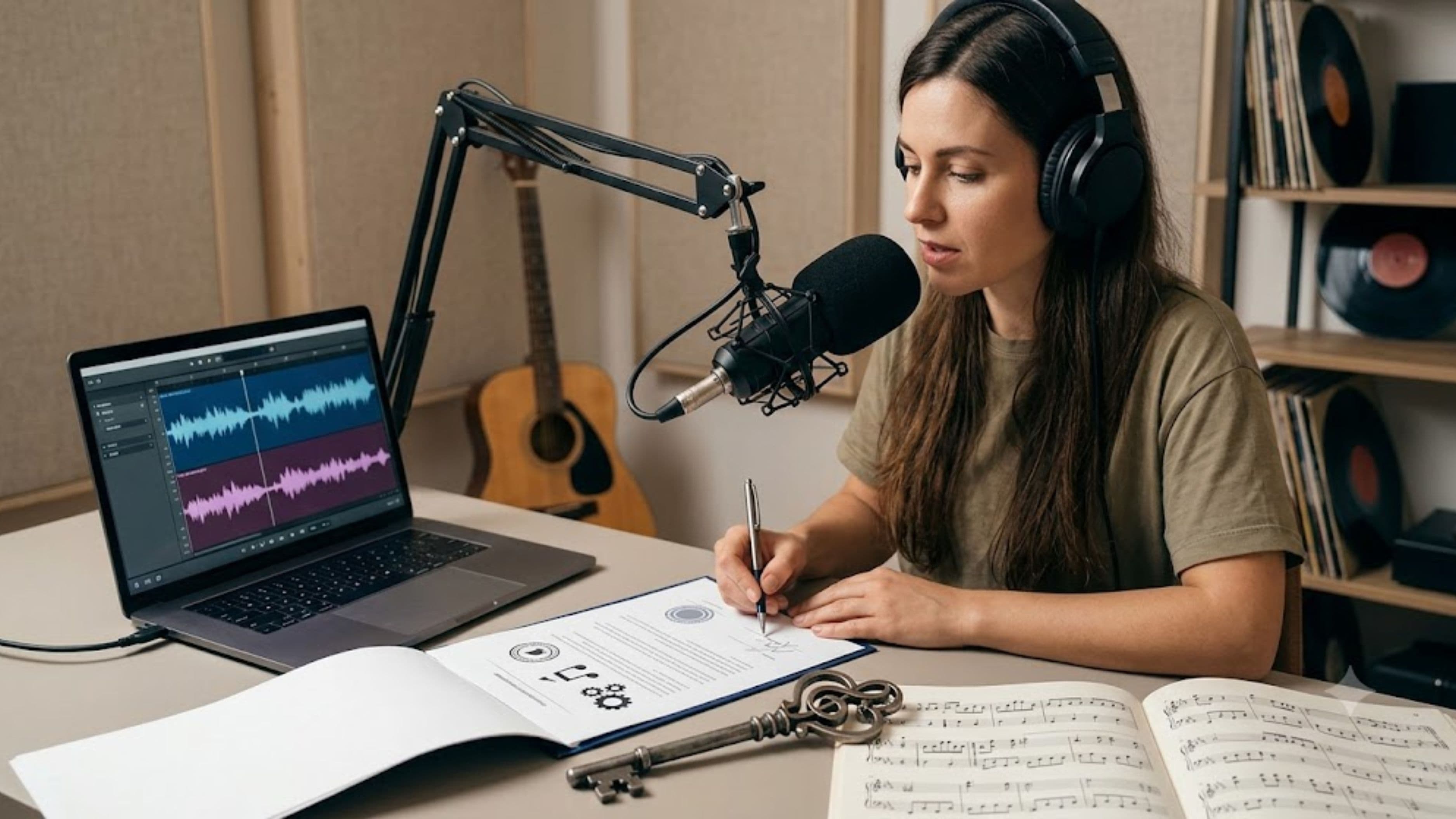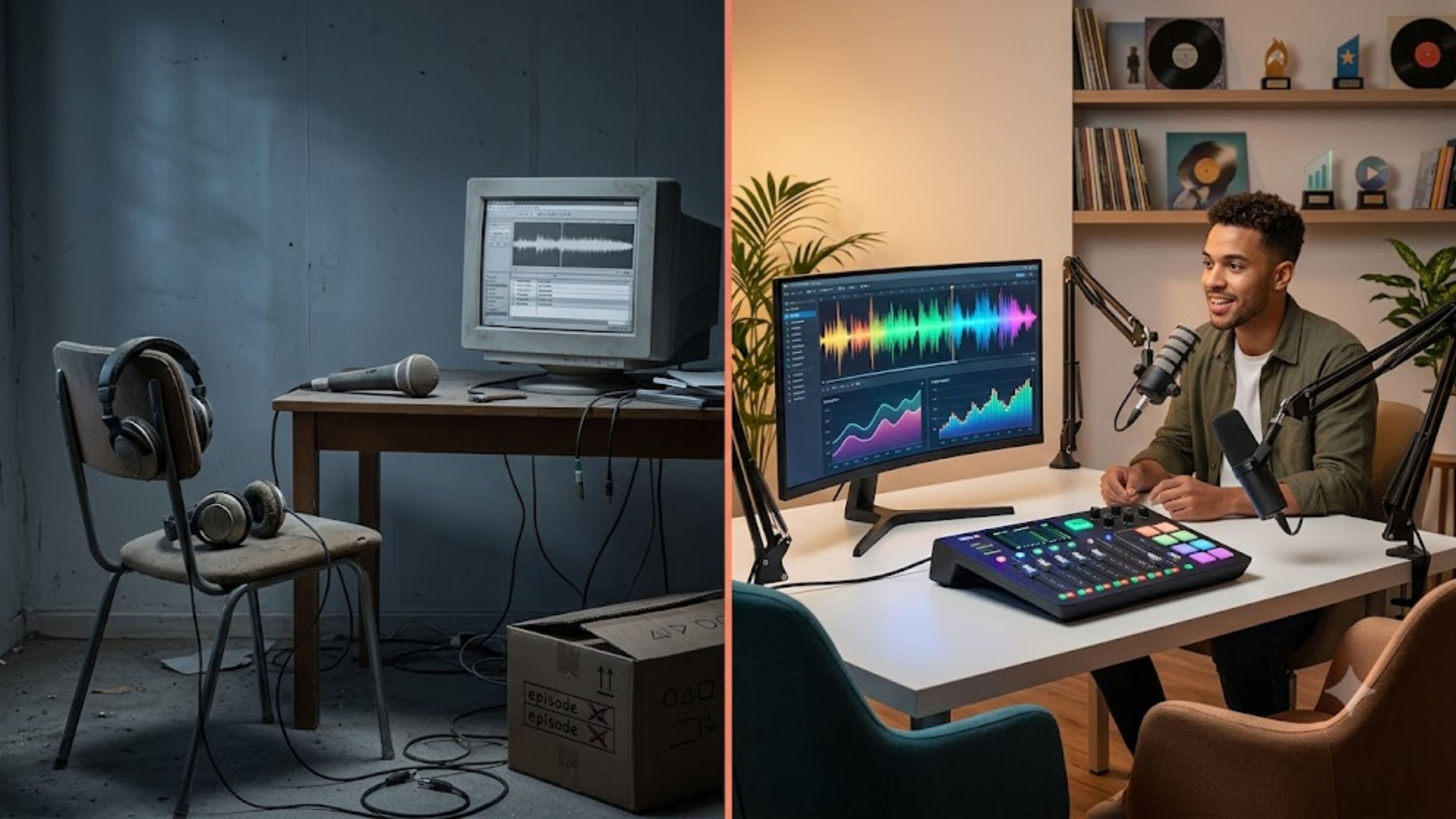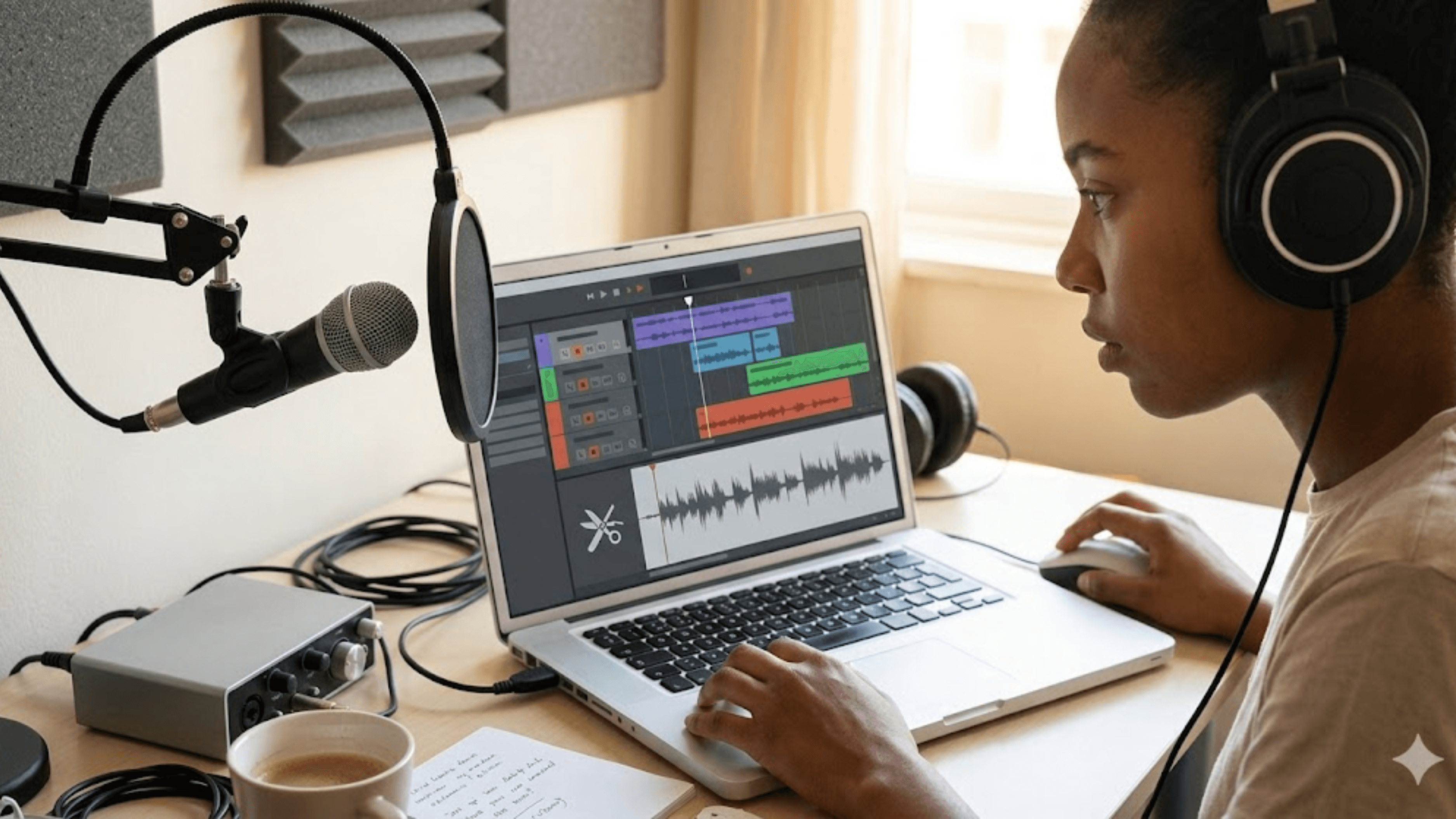
Here's a practical breakdown of what's actually available, what each tool is suited for, and how to set up a basic editing workflow without touching your wallet.
Why Free Tools Are More Than Enough for Most Podcasters
The core tasks in podcast editing are not technically complex. You're removing dead air, cutting mistakes, reducing background noise, balancing levels, and exporting a clean audio file. These tasks don't require a professional-grade DAW (Digital Audio Workstation) — they require a reliable editor with decent noise reduction and good export options. Free tools handle all of this competently.
The gap between free and paid software mostly shows up in advanced production work: complex multi-track sessions, heavy audio restoration, precise automation, or plugin-heavy mastering chains. If you're producing a narrative podcast with layered sound design, you'll eventually feel the ceiling. For interview podcasts, solo commentary shows, or anything that follows a standard record-edit-export workflow, free tools are genuinely sufficient.
Audacity: The Reliable Free Standard
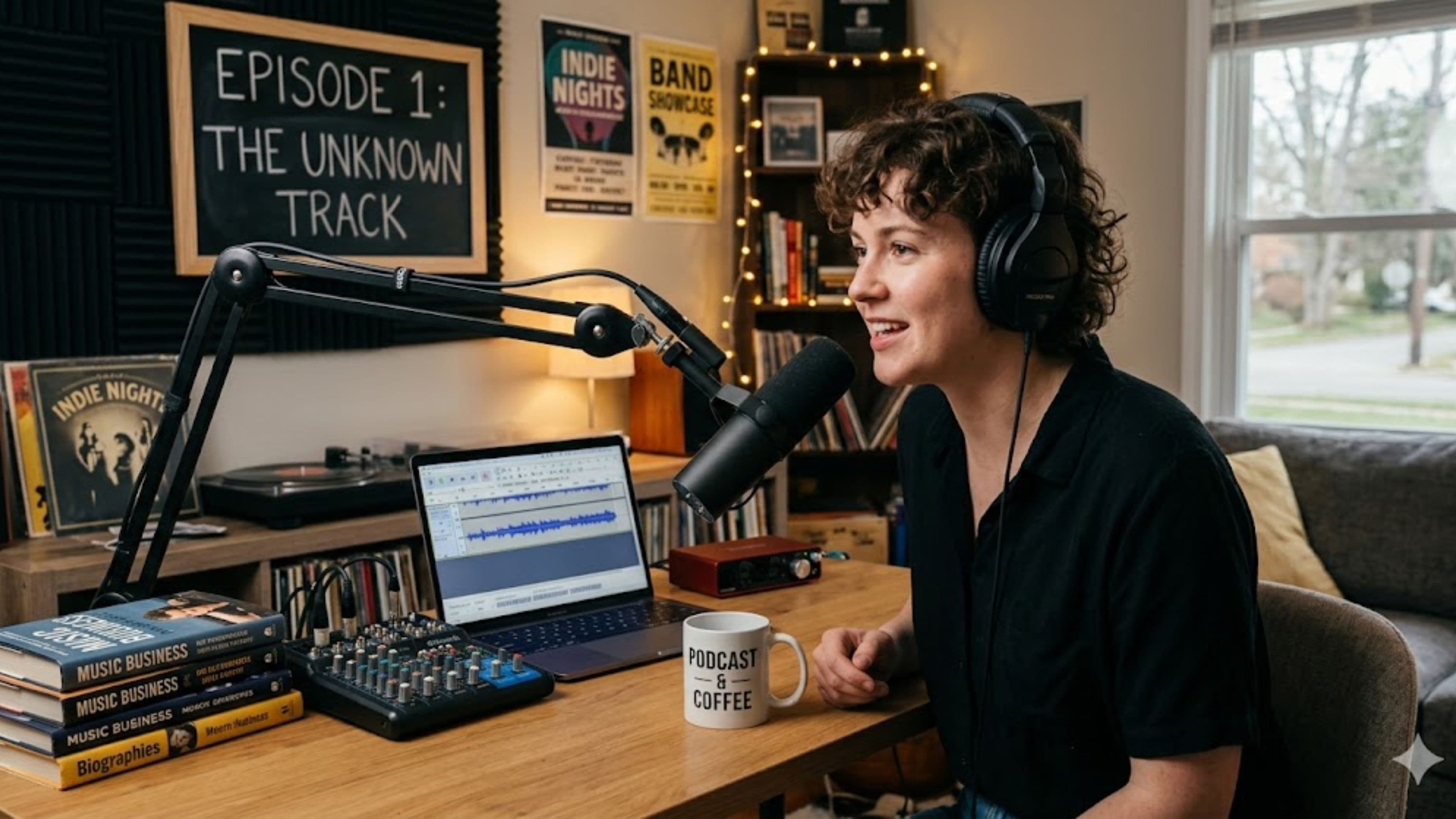
Audacity has been the go-to free audio editor for decades, and it still holds up. It's open-source, available on Windows, Mac, and Linux, and supports everything a podcaster needs: multi-track editing, noise reduction, silence trimming, compression, EQ, and export to MP3, WAV, or FLAC. The interface looks dated compared to modern tools, but the functionality is solid and the learning curve is manageable.
The noise reduction tool in Audacity is particularly useful. You select a section of your recording that contains only background noise — room hum, fan noise, HVAC — and Audacity uses that as a reference profile to reduce that frequency pattern throughout the clip. It won't perform miracles on a badly recorded track, but it handles common ambient noise effectively. The compressor plugin levels out volume inconsistencies between speakers, which is one of the most common issues in interview recordings.
Audacity's biggest limitation for podcasters is its clip-based editing model — it's not as smooth for timeline-based editing as some newer tools. But for most use cases, it's more than adequate. If you're starting out and want one tool that does everything without cost or subscription, Audacity is still the most practical choice.
GarageBand: Apple's Overlooked Podcasting Tool
If you're on a Mac or iPhone, GarageBand is already installed and free. Most people think of it as a music production tool, but it works well for podcast editing — arguably better than Audacity for straightforward interview episodes because the timeline interface is more modern and intuitive.
GarageBand handles multi-track sessions cleanly, which makes it easy to manage a two-person interview with each speaker on a separate track. You can adjust levels independently, apply noise reduction and EQ to each track separately, and export a stereo mix when you're done. The built-in Smart Controls give you access to compression and basic EQ without needing to understand plugin chains.
The main limitation is that GarageBand is Mac and iOS only. There's no Windows version. If you're on a Mac and haven't tried it for podcast editing, it's worth opening before you look at anything else.
Descript: The Exception to the "Free Is Enough" Rule
Descript works differently from traditional audio editors. It transcribes your recording and lets you edit the audio by editing the text — you delete a word from the transcript and the corresponding audio is removed. For interview podcasts and conversational shows, this approach is significantly faster than scrubbing through a timeline to find each "um," false start, or repeated sentence.
The free tier of Descript allows one hour of transcription per month, which is limited but enough to test whether the workflow suits you. The paid plans start at around $24 per month and include unlimited transcription, AI-powered filler word removal, and screen recording. For podcasters who produce more than a couple of episodes monthly, the paid tier is worth considering, but the free tier is enough to evaluate the approach.
The one genuine limitation of Descript is that its transcription-based editing doesn't give you the same fine control over audio that a traditional editor does. For precise cuts at the waveform level, most users export the rough cut from Descript and make final adjustments in Audacity or GarageBand. The two tools complement each other well.
Reaper: Paid, But Not Expensive, and Worth Knowing About
Reaper isn't free — a personal license costs $60 — but it deserves mention here because it's wildly underpriced for what it does, and the 60-day free trial is full-featured with no limitation. Reaper is a full professional DAW used by professional audio engineers, but it's lightweight, highly customizable, and runs on older hardware that would struggle with Pro Tools or Logic.
For podcasters who want a proper multi-track environment with no monthly subscription and no artificial feature ceiling, Reaper is the best value option in the market by a wide margin. The interface is less immediately approachable than GarageBand, but there's extensive free tutorial content online and a strong user community. If you're a podcaster who also produces music or sound design, Reaper handles all of it.
CapCut and Riverside.fm: Browser-Based Alternatives
A newer category of tools processes audio (and video) in the browser without requiring any software installation. These are worth knowing about if you're working on a machine where you can't install software, or if you want a fast turnaround without a full editing workflow.
Riverside.fm is primarily a remote recording platform, but its free tier includes basic editing tools for the recordings you make through the platform. If you're recording guests remotely, Riverside captures each participant's audio locally on their device (rather than through a compressed internet stream), which significantly improves audio quality compared to recording a Zoom or Teams call. The free tier supports up to 2 hours of recording per month with standard audio quality.
CapCut started as a video editing tool but has expanded into audio and podcast editing with an AI-powered workflow that can handle transcription, filler word removal, and basic mixing. It's free to use and browser-based, which makes it accessible without any installation. The quality of the AI editing tools varies — transcription accuracy depends heavily on recording quality and accent — but for straightforward cleanup it works.
Setting Up a Basic Free Editing Workflow
You don't need to use every tool. For most podcasters, a two-step workflow covers everything.
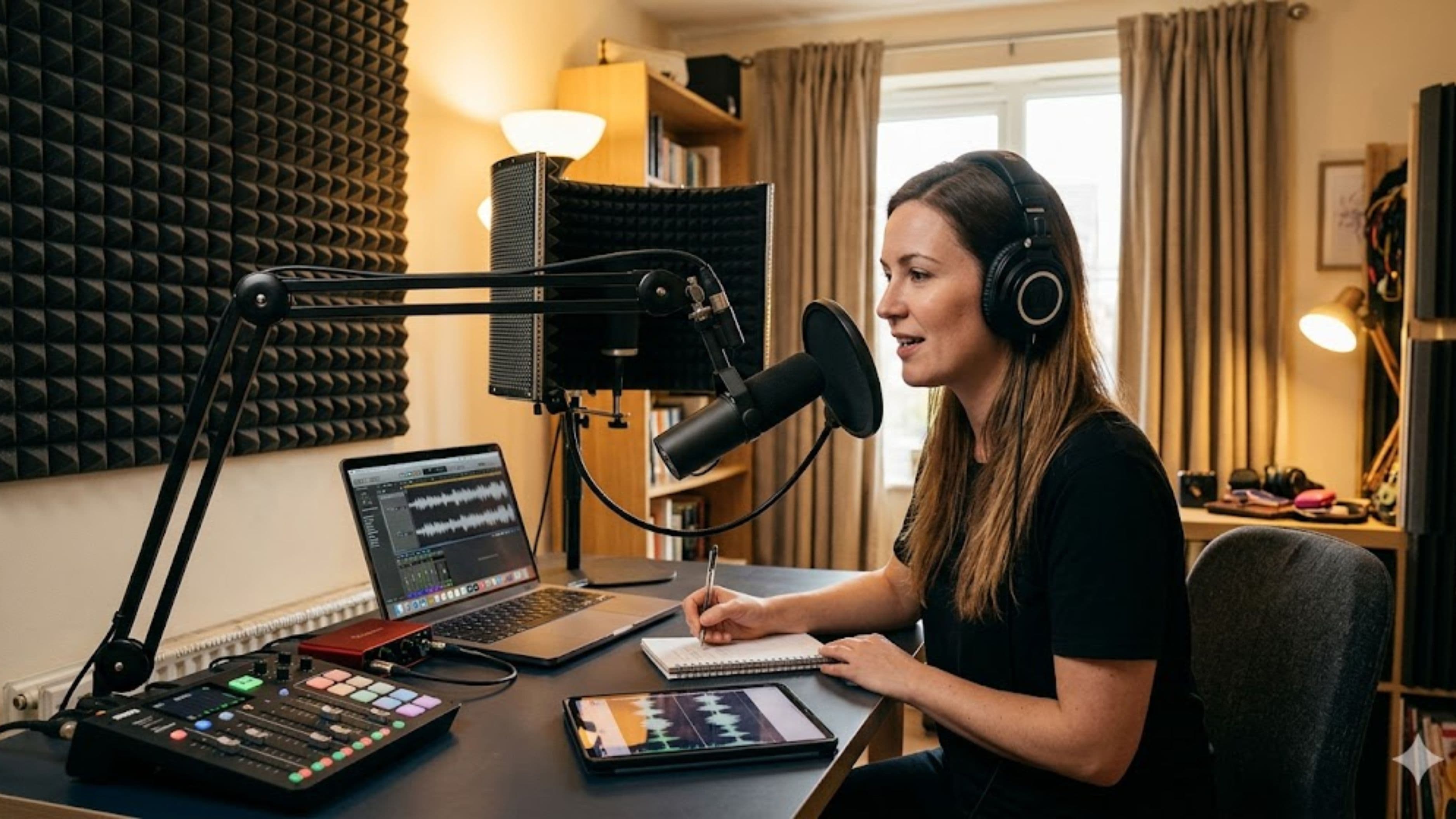
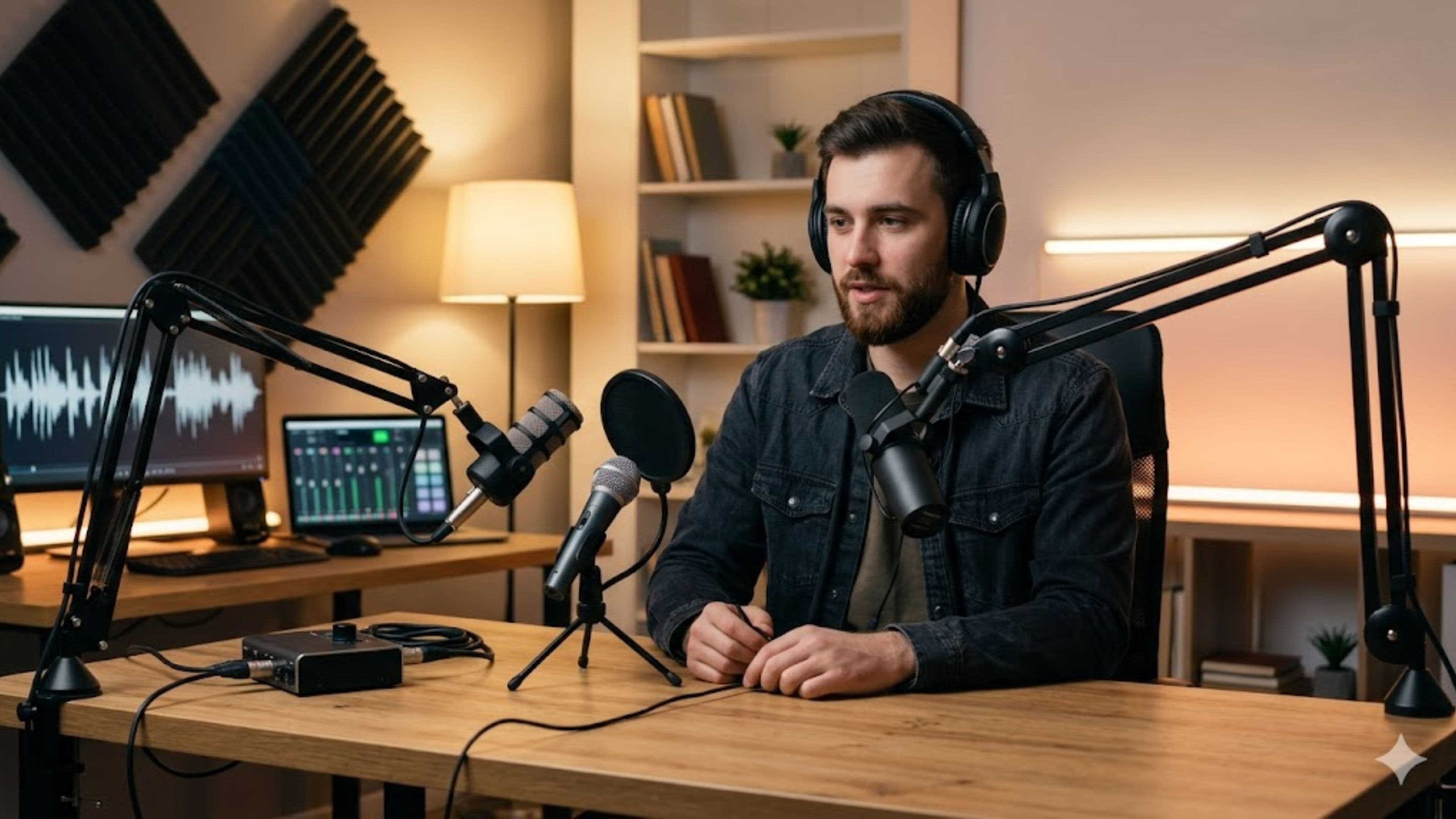
Step 1 – Recording. Record in a quiet space with a USB microphone positioned about 15–20 cm from your mouth. The better your recording, the less editing you need to do. Audacity can record directly, or you can record through Riverside.fm if you're interviewing remote guests, then download the audio for editing.
Step 2 – Basic editing in Audacity or GarageBand. Import your audio file. Remove the obvious mistakes by selecting and deleting sections on the timeline. Use the noise reduction tool to handle any consistent background hum. Apply a gentle compressor to even out levels. Export as MP3 at 128kbps for mono audio (standard podcast quality) or 192kbps for stereo.
That's the core workflow. If you want to add intro music or a bed track, GarageBand handles this more easily than Audacity because you can add a music track on a separate timeline layer and adjust the volume envelope to fade it out when the speaking starts.
What to Watch Out For
Noise reduction overuse. Audacity's noise reduction is useful but can introduce artifacts if applied too aggressively — a metallic, bubbly quality to the audio that sounds worse than the original noise. Apply it at conservative settings (12–15 dB reduction at most) and listen to the result before committing.
Exporting at the wrong settings. Most podcast platforms accept MP3 files. Export at 128kbps for mono, 192kbps for stereo. Higher bitrates don't improve podcast audio quality meaningfully and just increase file size.
Skipping normalization. Before exporting, normalize your audio so the loudest peak hits around -1dB. Audacity and GarageBand both have a normalize function. This prevents clipping and ensures your episode plays back at a consistent volume relative to other podcasts.
Descript transcription accuracy with heavy accents. If you or your guests have strong regional accents, Descript's transcription accuracy drops and the text-based editing becomes less reliable. Fall back on waveform-based editing in these cases.
FAQ
Is Audacity really free with no strings attached? Yes. Audacity is open-source and completely free to use for any purpose. There are no paid tiers, no feature limitations, and no subscription. It's maintained by a community of developers and has been for over 20 years.
Can I use GarageBand on Windows? No. GarageBand is exclusive to Apple devices — Mac, iPhone, and iPad. There is no Windows version. Windows users should start with Audacity or consider Reaper.
What's the best free option for removing filler words like "um" and "uh"? Descript's free tier handles this with AI-powered filler word detection and removal. The free tier allows one hour of transcription monthly, which is enough to clean up a standard episode. For more volume, the paid tier at around $24 per month is the most efficient tool for this specific task.
Do I need any special equipment to get started? A USB microphone significantly improves audio quality over a built-in laptop microphone. Models like the Audio-Technica AT2020USB or the Blue Yeti are popular starter options, but even budget USB mics in the $30–$50 range produce substantially better audio than internal microphones. Recording in a quiet room with soft furnishings (not a bathroom or kitchen) matters as much as the microphone.
Is there a learning curve to these free tools? Audacity has a moderate learning curve for the editing functions, but the core workflow (import, select, delete, export) can be learned in under an hour. GarageBand is more intuitive if you've used any timeline-based editor before. Both have extensive free tutorial content on YouTube.
📚 Sources
Audacity – Official Site and Documentation: https://www.audacityteam.org
GarageBand – Apple Support Overview: https://support.apple.com/garageband
Descript – Features Overview: https://www.descript.com/features
Riverside.fm – Remote Recording and Editing: https://riverside.fm/features
Reaper – DAW Overview and Licensing: https://www.reaper.fm/about.php
Podcast Industry Insights – Buzzsprout Podcast Stats 2024: https://www.buzzsprout.com/blog/podcast-statistics